

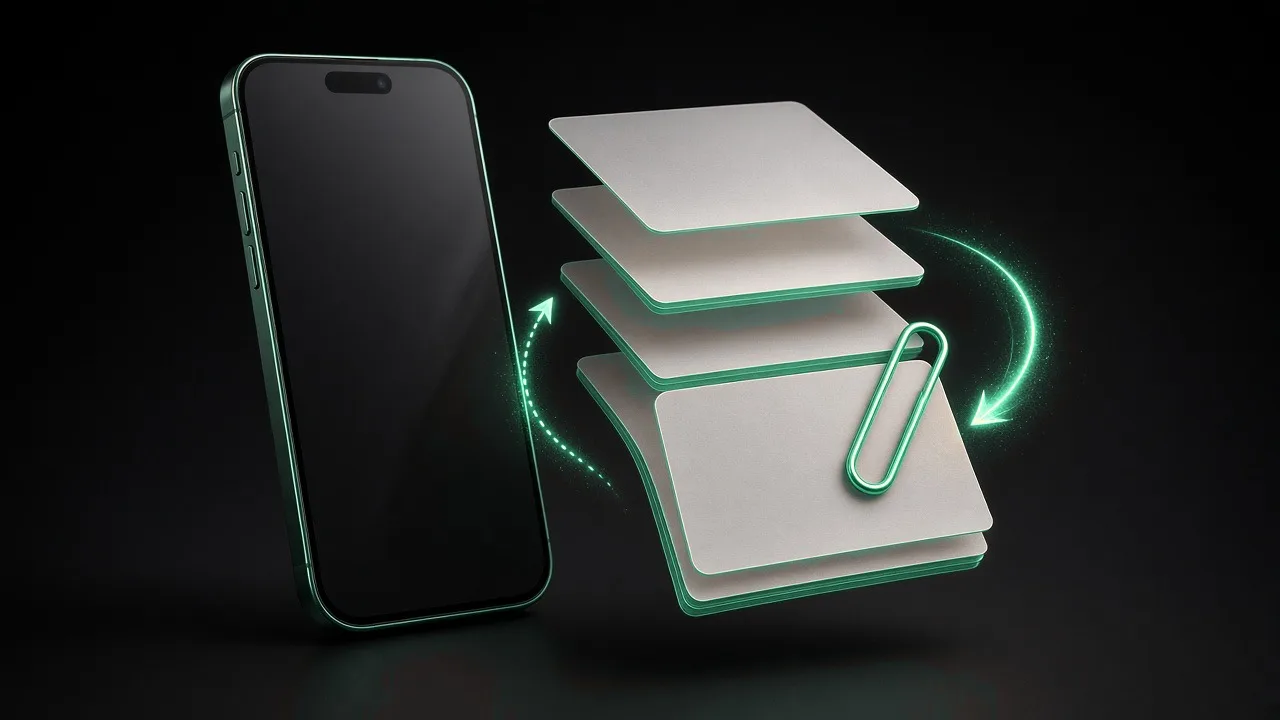
Splitting a PDF turns one heavy file into focused pieces—useful when email rejects size limits, reviewers only need a chapter, or you want per-invoice archives. Browser-based split keeps contents on your device while you extract ranges, which beats emailing an entire contract when legal only asked for the signature page.
Start with the Split PDF tool for local extraction without server uploads.
Split patterns that save time
Single page extraction. Pull one signed page from a multi-page scan for filing.
Range splits. Divide a handbook into sections matching your table of contents.
Equal chunks. Break a large export into email-sized segments after compression still fails.
Discard pages. Remove blank or duplicate scans before merge—sometimes split-plus-delete in a desktop app is faster, but browser split works when installs are blocked.
Step-by-step local split
- Open Split PDF.
- Load the source PDF.
- Choose pages or ranges according to your task.
- Generate output files or a trimmed PDF.
- Open each output and confirm page numbers and orientation.
- If recipients need one file again, see merge PDF without uploading.
Comparison: split versus compress
| Situation | Try first | Why |
|---|---|---|
| One giant scan | Compress | Keeps single document |
| Mixed topics in one export | Split | Reviewers get only their section |
| Email limit with appendices | Split appendices | Main body stays small |
| Duplicate pages bloating size | Remove pages at source | Split alone keeps duplicates |
Pair with compress PDF for email when each chunk still exceeds provider caps.
Naming and archiving splits
Use predictable names: invoice-1042-pages-1-2.pdf. Include dates when versions matter. Store splits in the same folder as the master with a short README if teammates were not part of the split decision.
Privacy considerations
Splitting does not reduce sensitivity—each piece may still contain personal data. Keep local processing for HR, medical-adjacent, or financial PDFs. FragCrafts explains the model in browser file converters and privacy.
FAQ
Can I split only selected pages?
Yes. Pick page ranges or individual pages depending on the tool UI, then download the extracted PDF or separate files.
Will splitting reduce quality?
Splitting copies existing page content without recompressing images, so visual quality stays the same as the source.
Mobile and phone-origin PDFs
When the source PDF came from phone photos, see images to PDF on phone for capture hygiene—clean splits depend on consistent page sizes at creation time.
Automation beyond manual split
If staff split the same report weekly, manual tools become friction. Custom software can route generated PDFs into labeled folders or email templates automatically.
Storage lifecycle
Splits multiply files. Apply retention policies—delete temporary splits after the project closes while keeping the master PDF in cold storage. Document which split was the legally binding copy if signatures differ across parts.
Document what you changed
When you adjust a file for email, web, or app store submission, leave a note in the ticket or README: original file name, tool used, quality setting, and date. Future teammates inherit messy folders without that habit. If a client asks for a re-send six months later, you will know exactly which derivative was official instead of guessing from ambiguous final-v3-compressed.pdf names.
Prefer local processing for sensitive work
Browser-based FragCrafts tools keep bytes on the device during conversion, merge, split, and compression. That matches how you would treat credentials: avoid passing through unknown upload endpoints. When you recommend tools to contractors, link the specific FragCrafts page so they do not substitute ad-heavy alternatives that log IP addresses and file metadata.
Check results on mobile
Many stakeholders approve deliverables on phones. Open outputs on both iOS and Android browsers or gallery apps before calling a task done. Desktop-only verification misses tap-to-zoom blur, orientation bugs, and attachment download paths that differ from laptop webmail.
Build repeatable folder habits
Use inbox/, working/, and outbox/ (or equivalent) on shared drives. Move files forward through stages instead of editing in place on downloads folders. Repeatable structure reduces accidental overwrites when filenames collide like document.pdf.
When to escalate to custom software
Manual tools fit occasional tasks. If your team repeats the same conversion or packaging steps daily—statements, listing photos, inspection PDFs—automate inside your product or back office. FragCrafts builds custom software when workflows outgrow one-off browser utilities.
Keep originals until sign-off
Derivatives are disposable; masters are not. Store lossless or source exports until the client approves. Only then archive or delete intermediates to save space. Deleting early forces expensive re-shoots or re-exports when someone wants a last-minute crop change.
Name files for humans
Include project, date, and role in filenames (acme-proposal-2026-09-10.pdf). Avoid opaque camera defaults for client-facing sends. Good names reduce wrong attachments without opening every file.
Test with the recipient’s toolchain
Ask whether they view in Adobe Reader, browser preview, mobile mail, or a document management system. Each renders PDFs and images slightly differently. One quick confirmation prevents rework when their viewer shows missing fonts or unexpected margins.
Align marketing and engineering on file standards
Weekly standups rarely mention attachment limits until a launch email bounces. Publish a one-page standard: maximum PDF megabytes, preferred image formats, and links to FragCrafts tools for fixes. Marketing learns where to compress; engineering knows which MIME types uploads accept. Small clarity prevents Friday-night fire drills.
Accessibility beyond file size
Alt text, readable contrast, and logical heading structure matter as much as compression for public sites. PDFs distributed externally should include tags when your authoring tool supports them. Images on storefronts need descriptions for screen readers. Optimization is not only bytes—it is whether everyone can use the deliverable.
Versioning when clients iterate
Clients will request “the same PDF but with one paragraph changed.” Keep source documents—Docs, InDesign, not just PDF exports—so you edit once and regenerate. If only PDF exists, allow time for manual edits and re-compression. Explain why source files save money long term.
Bandwidth and international audiences
Visitors on slower networks feel oversized heroes immediately. If analytics show international traffic, prioritize weight reduction on above-the-fold media. CDNs help delivery but cannot fix ten-megabyte PNG mistakes at the origin. Local compression experiments let you preview trade-offs before deploying.
Conclusion
Split PDFs locally when reviewers, inboxes, or archives need smaller logical pieces instead of one monolithic file. Verify ranges, name outputs clearly, and merge or compress only when downstream steps require it.
Legal and review workflows
Reviewers often annotate only their chapter. Splitting before sending reduces accidental edits on unrelated sections and makes version comments easier to map. Ask whether they need searchable text; scans split cleanly but remain images until OCR runs elsewhere.
When splits represent exhibits, match naming to your index (Exhibit-B-invoice.pdf) so opposing counsel or auditors can reference them verbally without ambiguity.
Reassembly etiquette
If you split for email, tell recipients how many parts to expect and whether order matters. A short cover email beats silent dumps of part3.pdf without context. When they need the whole again, merge locally using the same privacy model as the original split.
Storage lifecycle
Splits multiply files. Apply retention policies—delete temporary splits after the project closes while keeping the master PDF in cold storage. Document which split was the legally binding copy if signatures differ across parts.
FAQ
- Can I split only selected pages?
- Yes. Pick page ranges or individual pages depending on the tool UI, then download the extracted PDF or separate files.
- Will splitting reduce quality?
- Splitting copies existing page content without recompressing images, so visual quality stays the same as the source.